
AI & Excel Training Course
Key information
Upcoming sessions
Would you like to schedule this training on a specific date? Contact us by email or via the contact form.
Description of the training: AI & Excel Training Course
Combining AI (ChatGPT, Microsoft Copilot) with Excel and VBA automates the entire reporting cycle: data import, cleaning, dashboard building (PivotTables, KPIs), discrepancy detection between files, automatic PowerPoint generation and narrative commentary. The MFE-IT training teaches you to build a complete workflow that produces a management report in under 15 minutes, with a reusable library of prompts and VBA functions.
Which AI should you use with Excel?Two AI families are especially useful with Excel: ChatGPT (OpenAI) for generic prompts — writing, summarising and generating VBA code; and Microsoft Copilot (natively integrated into Excel with a Microsoft 365 Copilot licence) to query your workbooks directly, generate formulas, analyse data and produce visualisations. The training helps you combine both effectively.
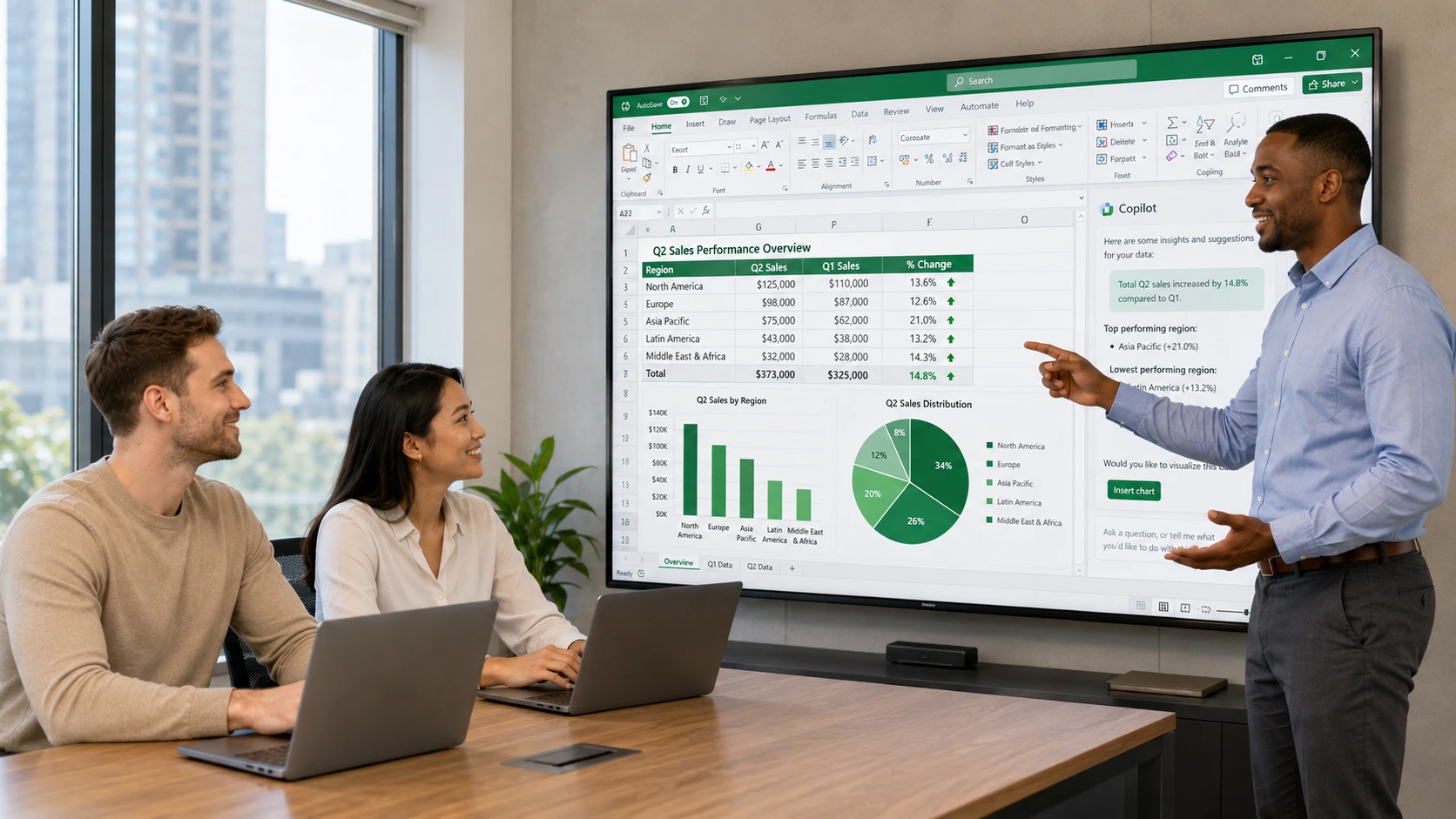
How do you enable Copilot in Excel?Microsoft 365 Copilot in Excel requires a specific Microsoft 365 Copilot licence in addition to a Microsoft 365 licence (Business Standard/Premium, E3/E5). Once enabled by the Microsoft 365 administrator, the Copilot icon appears in the Excel ribbon. The MFE-IT training covers practical use (prompts, data analysis, formula generation, chart creation) and writing effective, reusable prompts.
How long is the AI & Excel training?Our new-generation AI & Excel training at MFE-IT lasts 6 days, i.e. 36 hours, delivered remotely (recorded sessions). Complete format in 6 modules: advanced Excel, VBA fundamentals, advanced VBA + PowerPoint, AI and prompt engineering, centralised two-table system (prompts + VBA functions), complete workflow. 60% hands-on, turnkey deliverables, sessions guaranteed from a single registrant, maximum 3 participants.
{"@context":"https://schema.org","@type":"FAQPage","mainEntity":[{"@type":"Question","name":"What does AI & Excel actually bring?","acceptedAnswer":{"@type":"Answer","text":"Combining AI (ChatGPT, Microsoft Copilot) with Excel and VBA automates the entire reporting cycle: data import, cleaning, dashboard building (PivotTables, KPIs), discrepancy detection between files, automatic PowerPoint generation and narrative commentary. The MFE-IT training teaches you to build a complete workflow that produces a management report in under 15 minutes, with a reusable library of prompts and VBA functions."}},{"@type":"Question","name":"Which AI should you use with Excel?","acceptedAnswer":{"@type":"Answer","text":"Two AI families are especially useful with Excel: ChatGPT (OpenAI) for generic prompts — writing, summarising and generating VBA code; and Microsoft Copilot (natively integrated into Excel with a Microsoft 365 Copilot licence) to query your workbooks directly, generate formulas, analyse data and produce visualisations. The training helps you combine both effectively."}},{"@type":"Question","name":"How do you enable Copilot in Excel?","acceptedAnswer":{"@type":"Answer","text":"Microsoft 365 Copilot in Excel requires a specific Microsoft 365 Copilot licence in addition to a Microsoft 365 licence (Business Standard/Premium, E3/E5). Once enabled by the Microsoft 365 administrator, the Copilot icon appears in the Excel ribbon. The MFE-IT training covers practical use (prompts, data analysis, formula generation, chart creation) and writing effective, reusable prompts."}},{"@type":"Question","name":"How long is the AI & Excel training?","acceptedAnswer":{"@type":"Answer","text":"Our new-generation AI & Excel training at MFE-IT lasts 6 days, i.e. 36 hours, delivered remotely (recorded sessions). Complete format in 6 modules: advanced Excel, VBA fundamentals, advanced VBA + PowerPoint, AI and prompt engineering, centralised two-table system (prompts + VBA functions), complete workflow. 60% hands-on, turnkey deliverables, sessions guaranteed from a single registrant, maximum 3 participants."}}]} .elementor-accordion .elementor-tab-title .elementor-accordion-icon{margin-right:10px}.elementor-accordion .elementor-tab-title .elementor-accordion-icon + a,.elementor-accordion .elementor-tab-title .elementor-accordion-title{padding-left:4px}Good to know
Our sessions are guaranteed from a single registrant, with no risk of postponement (except in cases of force majeure). A prior interview takes place between the participant and a company representative to fully take into account the participant’s profile (level, needs, professional context, challenges, etc.). Evaluation: during the training, the trainer assesses participants’ learning progress through quizzes, role-plays and practical exercises. Participants receive a certificate of achievement at the end of the training. This training is part of our Artificial Intelligence training catalogue.
Objectives of the training: AI & Excel Training Course
- By the end of the training, each participant will be able to:
- Import, clean and structure data from ticket-management tools
- Build professional Excel dashboards with PivotTables, dynamic charts and KPIs
- Automatically detect discrepancies between several Excel files and generate an anomaly report
- Write VBA macros to automate data import, processing and visualisation
- Automatically generate complete PowerPoint presentations from Excel
- Apply a structured method for using AI (ChatGPT / Copilot) in reporting workflows
- Build and populate an organised prompt library, classified by functional objective
- Develop a reusable VBA function library with one-click access
- Design a centralised two-table Excel system to instantly retrieve and use any prompt or VBA function
- Set up an end-to-end autonomous workflow: data intake → processing → visualisation → presentation → AI commentary
Prerequisites of the training: AI & Excel Training Course
Good intermediate-to-advanced command of Excel (PivotTables, advanced formulas, charts). Familiarity with PowerPoint. Basic VBA notions are recommended but not required. Because every participant is unique, a personalised interview with our expert allows us to design a programme perfectly aligned with their goals, level and professional challenges.
Target audience of the training: AI & Excel Training Course
This training is intended for:
- Reporting managers, data analysts and Business Intelligence professionals
- Support technicians and helpdesk managers producing regular activity reports
- Operations managers and project leads needing automated dashboards
- Any professional using Excel daily who wants to integrate AI automation into their reporting
Detailed programme of the training: AI & Excel Training Course
Day 1 – Excel: Data import, advanced formulas, PivotTables and file comparison
- Kick-off and needs framing Review of each participant’s reporting processes
- Identification of the time-consuming tasks to automate
- Definition of a target workflow aligned with individual business goals
- Data retrieval and cleansing Importing CSV and XLSX files exported from ticket-management tools
- In-depth cleansing: removing duplicates, handling empty cells, standardising formats and checking column consistency
- Advanced formulas for KPIs Hands-on use of COUNTIF, SUMIF, SUMPRODUCT, VLOOKUP/XLOOKUP, IFS, UNIQUE, FILTER and SORT
- Calculating volumes, rates, lead times, service levels and trends
- PivotTables and dashboard Multi-criteria PivotTables, slicers and timelines
- PivotCharts
- Building a clear, synthetic dashboard
- File comparison Comparing several Excel extracts (periods, teams, categories) using reconciliation formulas
- Spotting discrepancies, changes and anomalies, with automatic highlighting
- Day wrap-up Summary, Q&A and a self-guided exercise to consolidate learning
Day 2 – Introduction to VBA: fundamentals and Excel automation
- Correction of Day 1 exercises.
- VBA fundamentals:the VBE environment and the macro recorder; variables, data types and scope; For/Next and Do/While loops; If/Then/ElseIf/Select Case conditions.
- Files and data:opening, reading and copying files; iterating through folders; referencing cells, ranges and sheets; automated cleanup routines.
- VBA for PivotTables and charts:creating and refreshing PivotTables via macro; generating dynamic charts; configuring styles, colours and axes through code.
- Hands-on lab:building a complete import macro covering import, cleaning, KPI calculation and dashboard generation. Error handling with On Error and MsgBox.
Day 3 – Advanced VBA: automated comparison and PowerPoint generation
- Correction of Day 2 exercises.
- Automated file comparison:a macro comparing two Excel extracts, automatically identifying discrepancies, colour-coding them and compiling a structured report.
- PowerPoint automation:the PowerPoint object model (Slide, Shape, TextFrame); creating, editing and deleting elements through code.
- Full presentation generation:a macro building a complete slideshow — title slide, KPIs, charts, key points and actions — applying the corporate template and brand guidelines.
- One-click lab:complete macro chain: import → dashboard → comparison → PowerPoint generation.
Day 4 – Artificial Intelligence: method, prompt engineering and Copilot
- Correction of Day 3 exercises and macro adjustments.
- AI tools overview:ChatGPT and Microsoft Copilot — features, reporting use cases, and an introduction to prompt engineering: precision, context, output format and iteration. Understanding why prompts succeed or fail.
- Writing effective prompts:anatomy of a good prompt (role, context, task, response format, examples); prompts for reporting commentary, anomaly detection, alert wording and data summarisation; reusable vs. throwaway prompts.
- Building a prompt library:classification method by functional objective, domain and criteria; creating named, versioned text files for each prompt; organising the library folder.
- Lab:each participant writes and classifies their first 10 business prompts, one text file per prompt, named by functional objective. First real-world tests.
Day 5 – The centralised system: the two reference Excel tables
- Correction of Day 4 and prompt-library adjustments.
- Building Table 1 — Prompt library:table structure with Domain, Functional objective, Prompt name, File link and Criteria columns; data entry from the library; formatting, named ranges and data validation.
- Slicers and navigation for Table 1:adding slicers to filter by domain and criteria; macro: one click on a functional objective displays the matching prompt in a text box or message. Testing and validation.
- Building Table 2 — VBA function library:same structure applied to VBA functions; Domain, Functional objective, Function name, Source-module link and Criteria columns; populated with the functions developed on Days 2 and 3.
- Slicers and navigation for Table 2:filtering slicers; macro: one click on a functional objective shows the corresponding VBA code on screen. Unified navigation between the two tables. Optional UserForm interface.
Day 6 – Finalisation, complete workflow and knowledge capitalisation
- Correction of Day 5 and centralised-system adjustments.
- Enriching and evolving the system:how to add new prompts and VBA functions over time; best practices for naming, versioning and file organisation; treating the system as a living tool.
- Orchestrating the complete workflow:connecting all components — file intake → import macro → dashboard → comparison → PPT generation → AI prompts for commentary. One-button execution. Robustness and maintainability.
- Final simulation lab:full run on the participant’s real data: import → VBA processing → dashboard → generated presentation → AI commentary via the prompt library → Copilot review. Goal: a complete report; live demonstration of the full workflow and centralised system on real data.
- Deliverables provided:turnkey centralised system (Prompt table + VBA table with navigation macros); initial prompt library; complete VBA macros; Excel and PPT templates; course materials; 3-month access to resources.
Why this training stands out
- This training:
- Doesn’t just teach isolated tools — it shows how to connect them into a single, smooth automated workflow.
- Is 100% geared toward reporting professionals, with no unnecessary technical detours.
- Produces a concrete, immediately operational result: a complete system you own and can evolve on your own.
FAQ
What does AI & Excel actually bring?
Combining AI (ChatGPT, Microsoft Copilot) with Excel and VBA automates the entire reporting cycle: data import, cleaning, dashboard building (PivotTables, KPIs), discrepancy detection between files, automatic PowerPoint generation and narrative commentary. The MFE-IT training teaches you to build a complete workflow that produces a management report in under 15 minutes, with a reusable library of prompts and VBA functions.
Which AI should you use with Excel?
Two AI families are especially useful with Excel: ChatGPT (OpenAI) for generic prompts — writing, summarising and generating VBA code; and Microsoft Copilot (natively integrated into Excel with a Microsoft 365 Copilot licence) to query your workbooks directly, generate formulas, analyse data and produce visualisations. The training helps you combine both effectively.
How do you enable Copilot in Excel?
Microsoft 365 Copilot in Excel requires a specific Microsoft 365 Copilot licence in addition to a Microsoft 365 licence (Business Standard/Premium, E3/E5). Once enabled by the Microsoft 365 administrator, the Copilot icon appears in the Excel ribbon. The MFE-IT training covers practical use (prompts, data analysis, formula generation, chart creation) and writing effective, reusable prompts.
How long is the AI & Excel training?
Our new-generation AI & Excel training at MFE-IT lasts 6 days, i.e. 36 hours, delivered remotely (recorded sessions). Complete format in 6 modules: advanced Excel, VBA fundamentals, advanced VBA + PowerPoint, AI and prompt engineering, centralised two-table system (prompts + VBA functions), complete workflow. 60% hands-on, turnkey deliverables, sessions guaranteed from a single registrant, maximum 3 participants.